

ServiceBook — vehicle service history via QR
Register a vehicle, assign a QR sticker and share completed repair history. Guided steps, workshop verification and permission checks protect changes.
ServiceBook is a digital vehicle service book opened from a QR sticker. It connects vehicle details with completed repair history: dates, mileage, work and materials. The workshop uses its StasiukFlow dashboard, while customers read the shared history in a phone browser without installing another app.
At the next visit, check the VIN or scan the sticker to find the vehicle. Customers get a clear record of previous servicing, and the workshop sees repair publication status. Get started with guided steps: connect the workshop, add a vehicle, assign its code and confirm the details.
Convenient reading does not grant editing rights. Public history is a read-only view; workshop operations require sign-in and the right permissions. The steps below explain everyday use and what to check before sharing information.
1. Connect and verify your workshop
Open ServiceBook in the dashboard, enter business and contact details, and complete the required verification steps. The form shows required fields and application status. Once approved, available operations can be used. Pending reviews and requests for corrections are visible in the dashboard.
2. Register the vehicle and check its details
Choose Add vehicle and enter its VIN, basic details and mileage. Optionally attach vehicle, VIN and odometer photos. Review the summary before final confirmation; the countdown gives you time to spot mistakes. A VIN check on the work order shows whether the vehicle is already registered.
3. Assign a QR with a camera, scanner or code
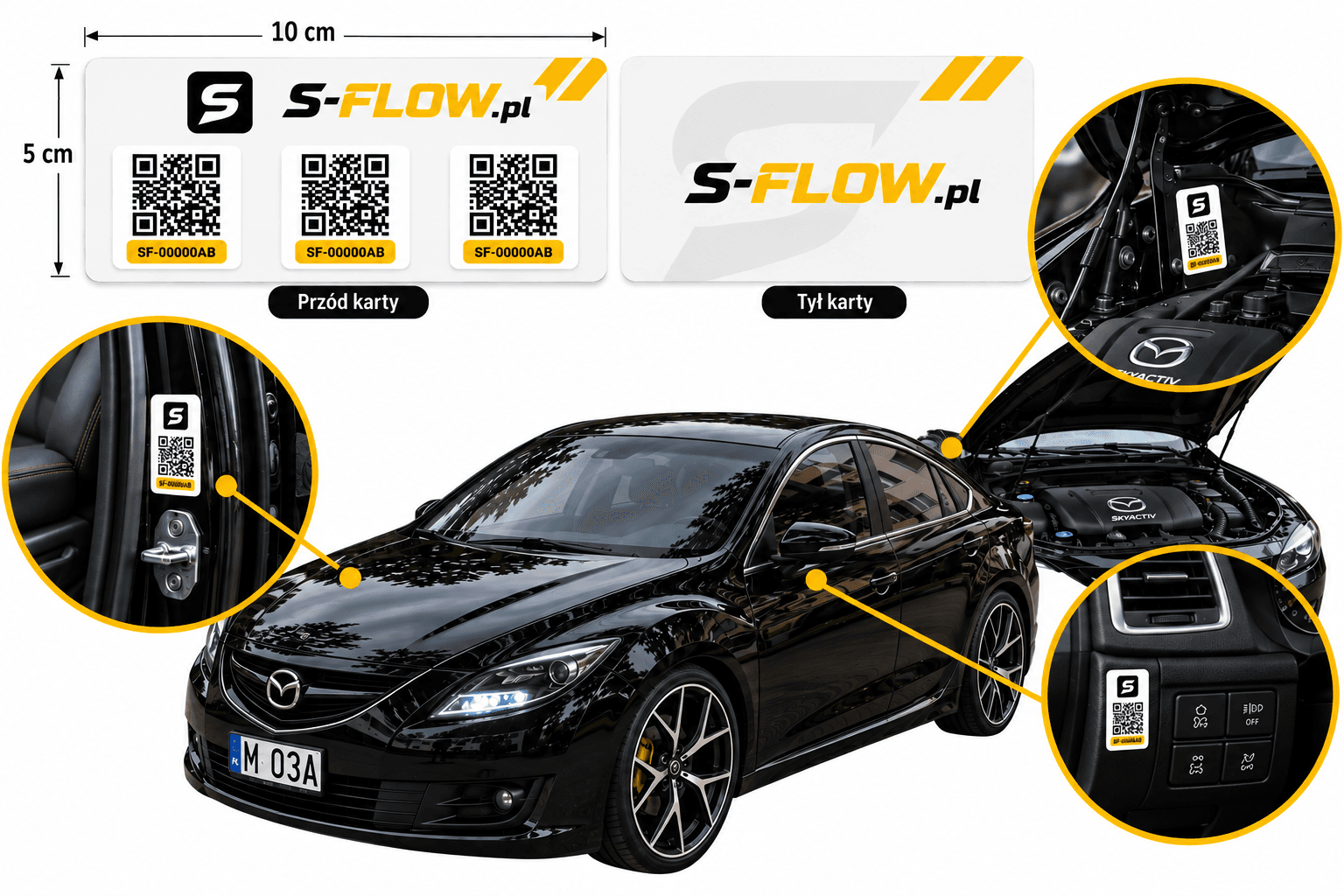
Use a camera, a USB/Bluetooth scanner in keyboard mode, or enter a code such as SF-00000AB manually. Special equipment is optional. Each sheet contains three stickers with the same QR number, all opening the same vehicle history. The diagram shows their placement. ServiceBook Shop lets you request the number of sheets you need and provide a delivery address.
4. Build history from completed repairs
When an eligible repair order is completed, the system prepares a record of work and materials with the date and mileage. It uses approved items rather than presenting rejected work or returned materials as completed services. Delivery status appears on the order. Supply missing VIN or mileage before retrying. A diagnosis-only visit follows its own workflow.
5. Customers read history on their phones
Scan the QR with a phone camera and open the link in a browser. The shared view shows vehicle details, photos and repair history with workshop information. Reading does not require an account. It is useful at the next visit, but does not allow readers to change mileage, records or photos.
Manage photos and corrections clearly
An authorised worker can scan the sticker and open the vehicle, VIN and odometer photo editor. Replacing a photo does not change vehicle details or recorded mileage. Forms accept size-limited JPEG and PNG files. Correcting a published repair requires a reason and the current record revision; after the correction period expires, use the appropriate correction procedure.
Security: reading is separate from editing
Workshop operations require sign-in and access checks for the selected business. Reading, editing and platform administration have separate permissions. Workshop verification, sticker-code checks, confirmation steps and record version checks reduce accidental or unauthorised changes. Knowing a QR code does not let someone edit a vehicle or use another workshop’s dashboard.
Privacy: share deliberately
QR history is public: anyone with the sticker or link may read it. Treat it as shared information, not a password to a private archive. It contains vehicle and service details; the repair record does not copy customer contact details from the order. Check photos for documents, phone numbers or other personal information before uploading them.
Clear steps when something goes wrong
Enter a code manually or use a scanner when the camera is unavailable. If publication is not confirmed, check its status before retrying. The dashboard distinguishes missing data, review required and delivery pending. A temporary outage does not mean the vehicle is absent. Saved registration sessions and local drafts can be restored when the browser permits storage.